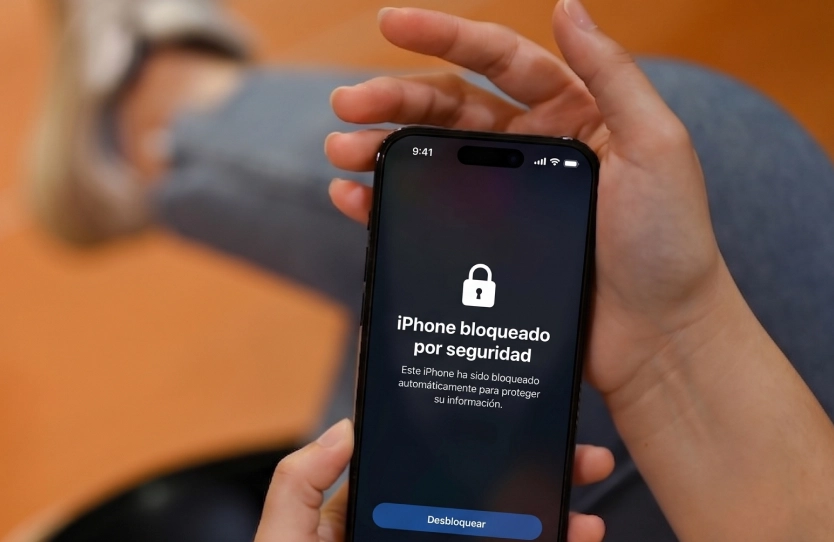
Losing an iPhone or having it stolen doesn’t just mean replacing an expensive device. It can also put your photos, bank accounts, conversations, documents, and much of your personal information at risk. The good news is that Apple includes security tools that can help you protect your data and increase your chances of recovering your device.
What happens if you lose your iPhone?
Today, our cell phones store a large part of our lives.
• Banking apps.
• Passwords.
• Family photos.
• Emails.
• Work-related information.
That’s why, when an iPhone is lost or stolen, the problem isn’t just the value of the device. There’s also the risk that third parties might try to access all that information.
The best thing to do is to prepare your device before an emergency happens.
1. Turn on “Find My iPhone”
This is Apple’s most important tool for locating a lost device.
With it, you can:
✔ View the iPhone’s location from another device.
✔ Play a sound to find it.
✔ Enable Lost Mode.
✔ Remotely lock the device.
✔ Erase all your data if necessary.
How do you enable it?
Settings → Your Name → Find → Find My iPhone.
Make sure the option remains enabled.
2. Turn on Find My Network
Even if your phone is turned off or not connected to the internet, Find My allows nearby Apple devices to help locate it safely and anonymously.
This feature significantly increases the chances of finding a lost device.
3. Enable Anti-Theft Protection
This feature, built into recent versions of iOS, adds an extra layer of security when your phone is outside of usual locations like your home or workplace.
For example, it will require biometric authentication before allowing major changes such as:
- Changing your Apple ID password.
- Disabling Find My iPhone.
- Changing critical security settings.
This makes it harder for a criminal to take control of the device even if they know your unlock code.
4. Use a secure passcode and Face ID
Avoid simple passcodes such as:
- 1234
- 0000
- Your date of birth
We recommend using a passcode of at least six digits and enabling Face ID to add an extra layer of protection.
Every extra second it takes to gain access can make a difference.
5. Enable two-factor authentication
Your Apple ID is the key to all your information.
That’s why it’s important to enable two-factor authentication.
That way, even if someone knows your password, they’ll need a second verification code to log in to your account.
6. Keep your iPhone up to date
Every iOS update includes security improvements designed to fix vulnerabilities.
Keeping your operating system up to date is one of the easiest ways to reduce risks.
Security Starts Before a Theft
Many people only enable these features after losing their cell phone.
However, once your device is no longer with you, time is working against you.
Taking a few minutes to set up your iPhone properly can help protect years of personal information and enable a much faster response in case of loss or theft.
Want more tips on protecting your information and your home?
At Seguridad Nueva Era, we share practical recommendations on physical and digital security to help you prevent risks before they occur.